Example Account Information (Demo Only)
The account information you receive is usually provided in the following format:
+17633765138|Cxz86199724@|https://app.yuntl.cc/apisms/80e748ec3d8b2aefcb785ba15|06o61b65s-denim@icloud.com|rUndv3533rsKfT
Field Order
The information above follows this order:
→ Phone Number (US +1)
→ ChatGPT Password
→ SMS Verification Link
→ Bound Email Address
→ Email Access Code(≠ email password)
For easier understanding, here is the same information separated into individual items:
Phone Number (US +1)
+17633765138
ChatGPT Password
Cxz86199724@
SMS Verification Link
https://app.yuntl.cc/apisms/80e748ec3d8b2aefcb785ba15
Bound Email Address
Email Access Code
rUndv3533rsKfT
⚠️ Important Notice
- The information shown above is for demonstration purposes only.
- The example credentials cannot be used to access any account.
- Every customer receives a unique set of account credentials.
- Always use only the account information that was provided directly to you.
- Do not attempt to log in using the example credentials shown in this guide.
ChatGPT Web Login Instructions
Step 1
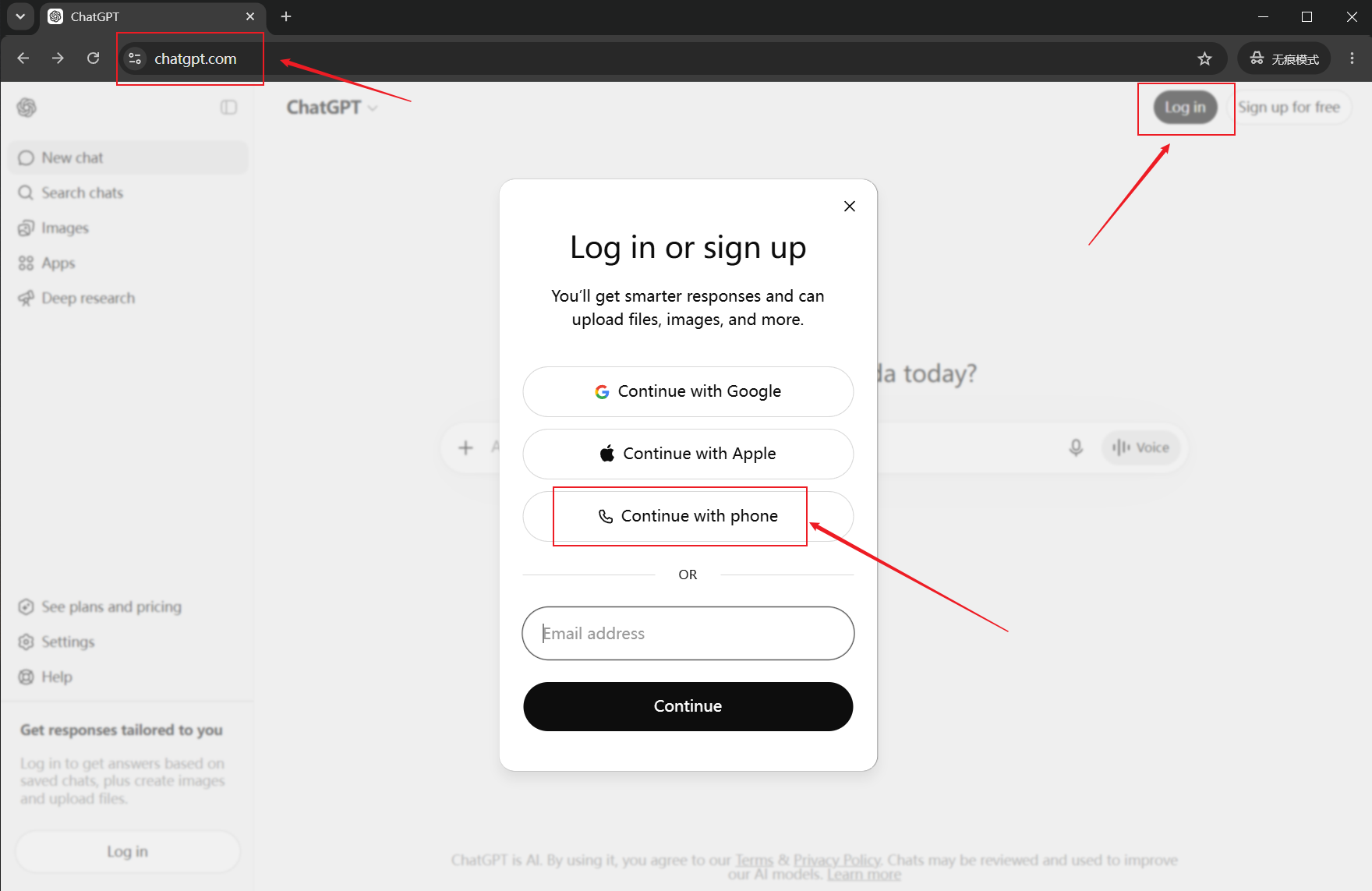
Open ChatGPT in your browser: https://chatgpt.com ,Click Log In and choose Continue with Phone Number.
Step 2
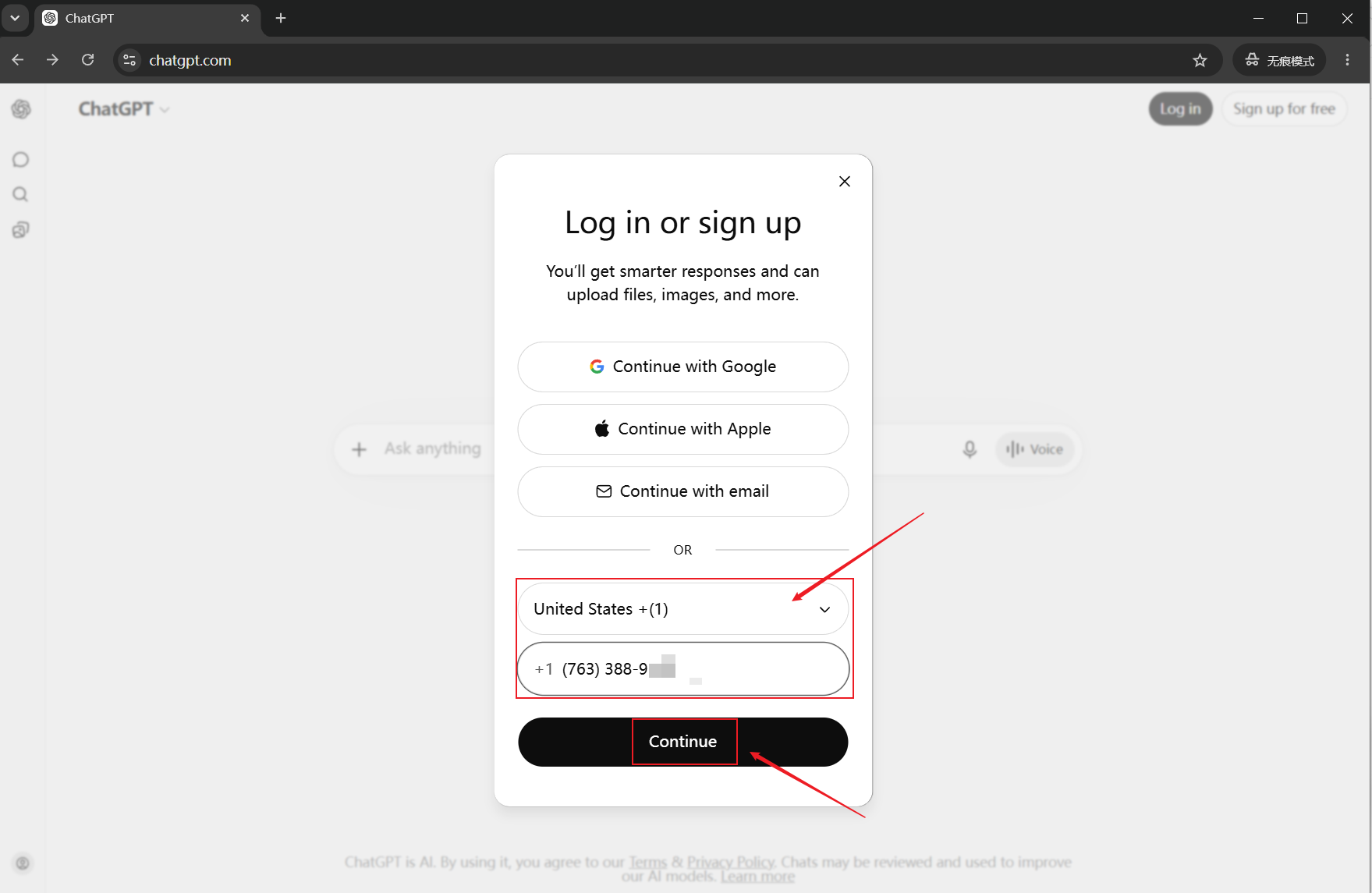
Select the country code:
+1 United States
Enter the provided phone number.
Example:
7633889138
Important: Do not enter the leading country code "1" again. Only enter the 10-digit phone number.
Step 3
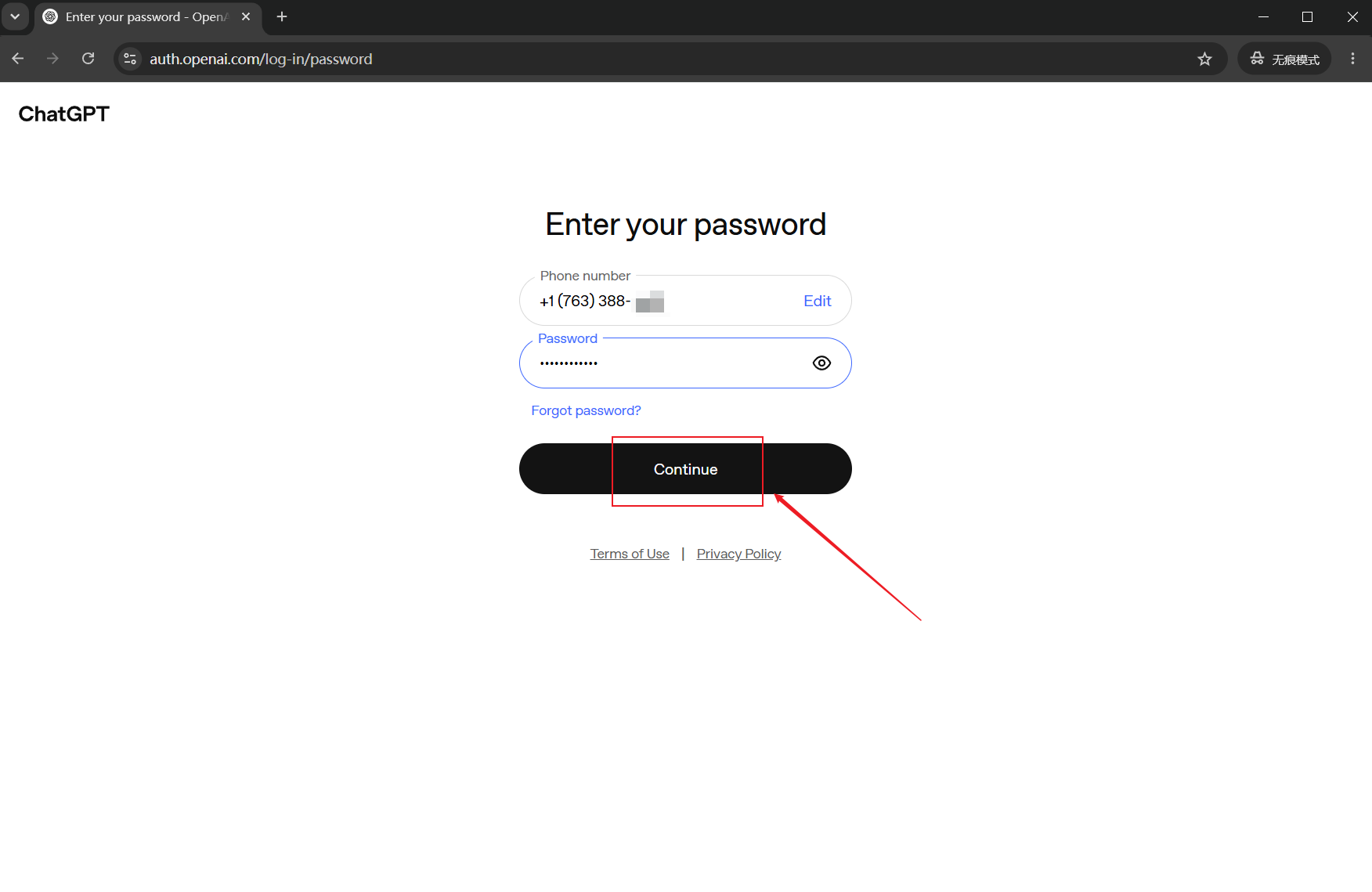
Enter the password provided with your account.
Step 4
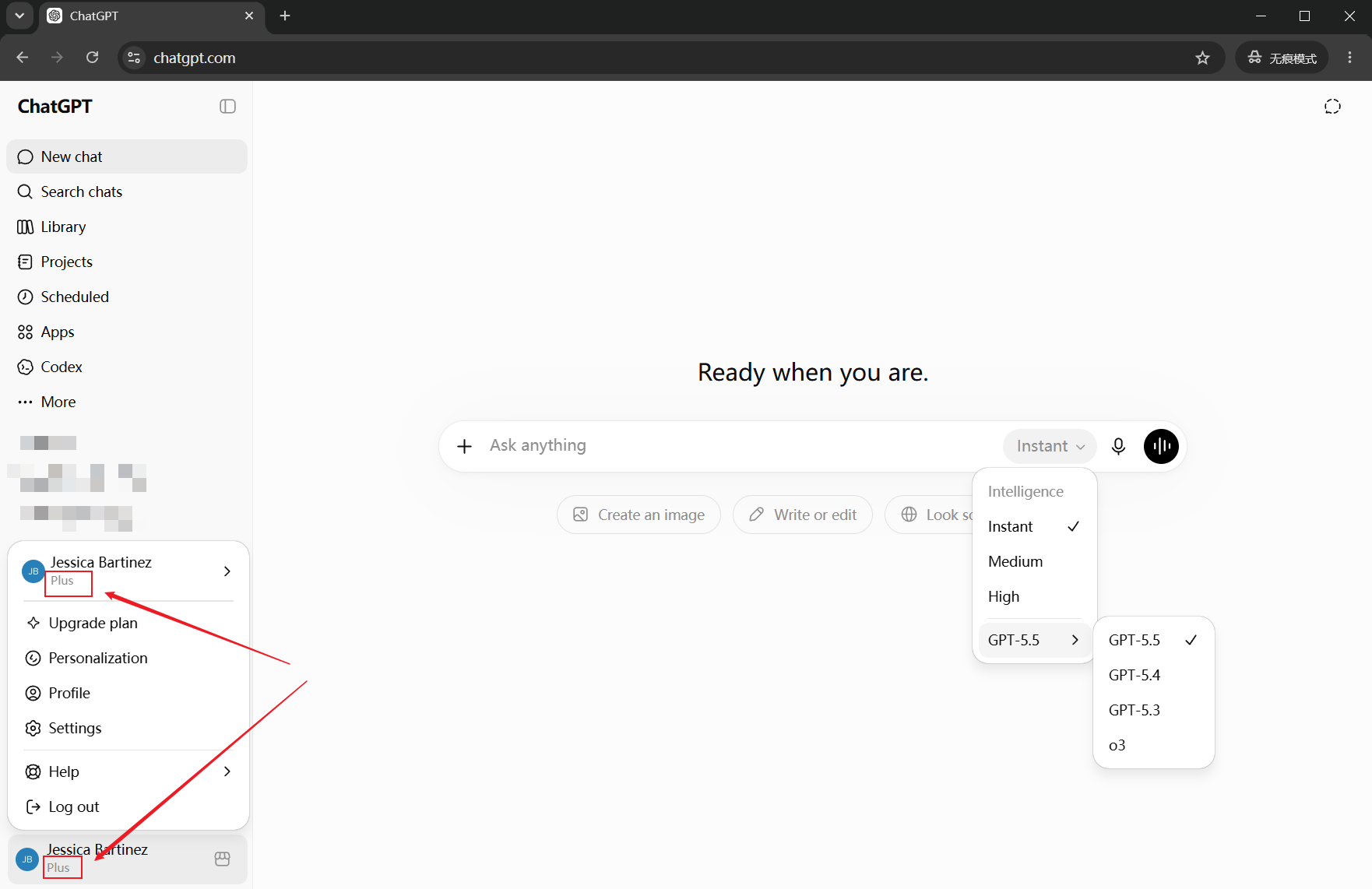
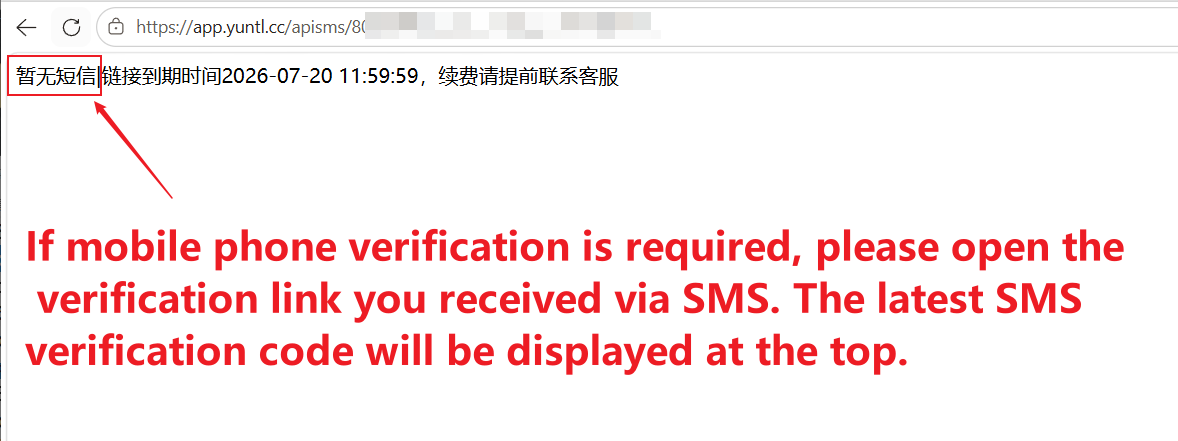
If SMS verification is required, open your assigned SMS verification link and retrieve the latest verification code.
After successful verification, you will be able to access ChatGPT normally.
Codex Client Login Instructions
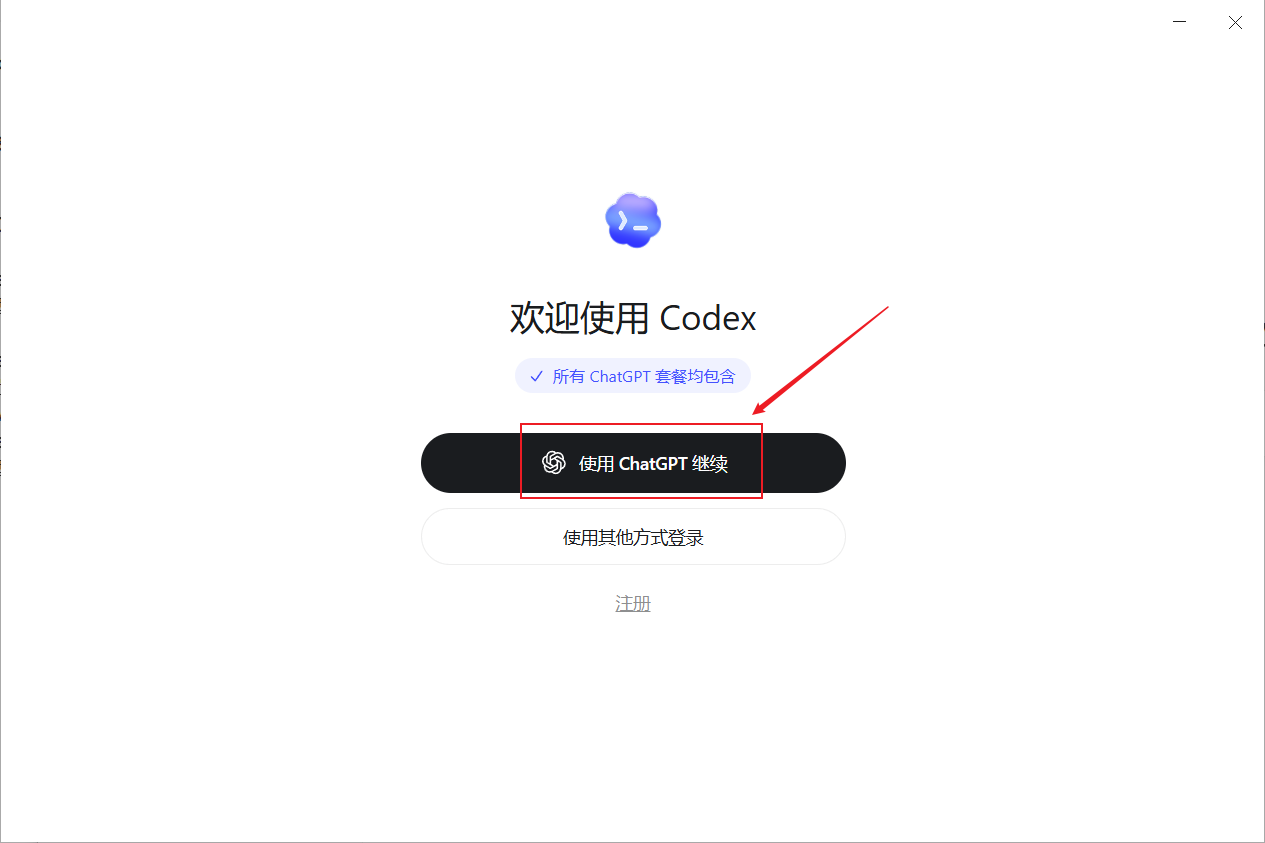
Step 1
Open the Codex application,Select Sign In with Account.
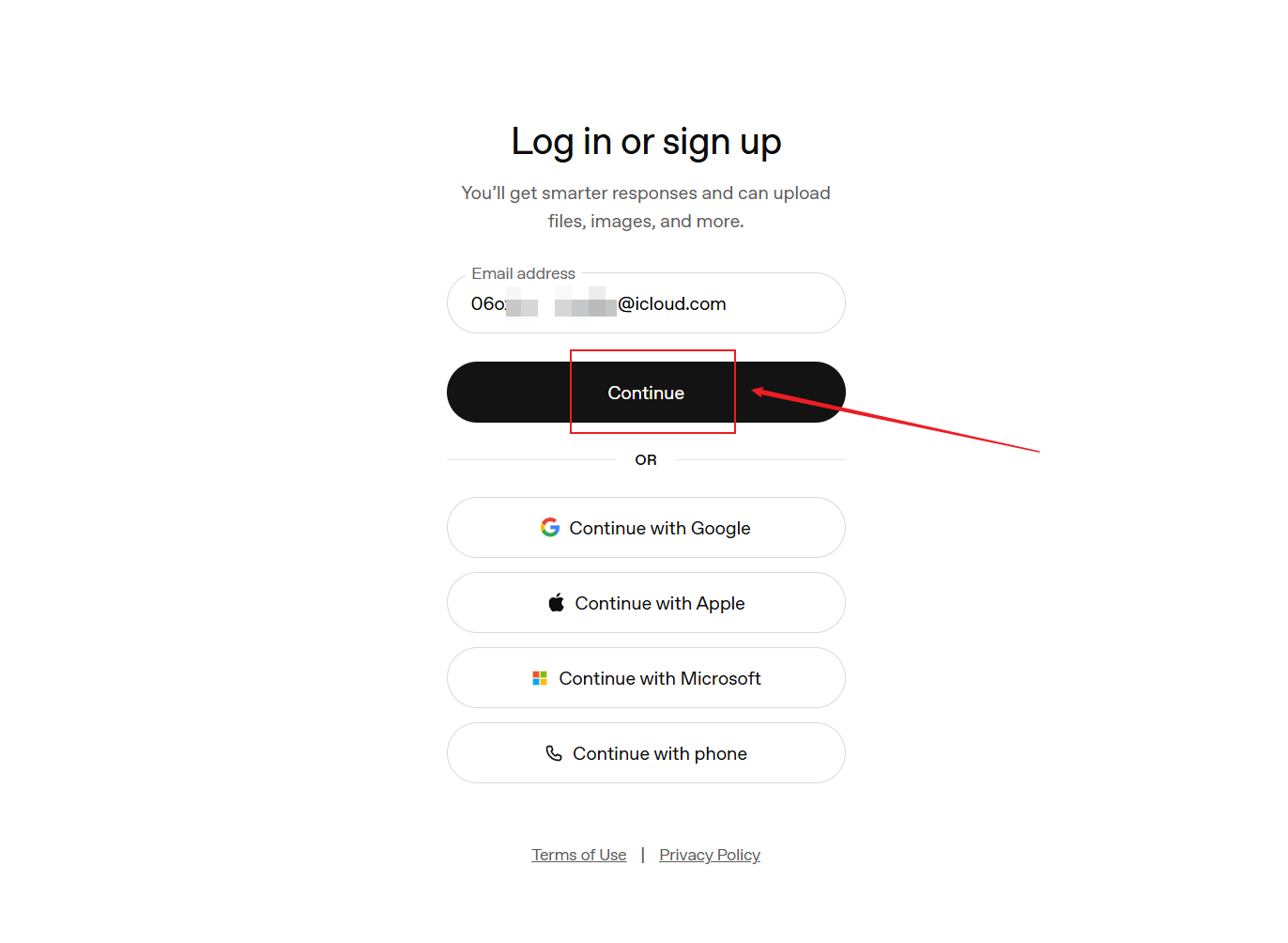
Step 2
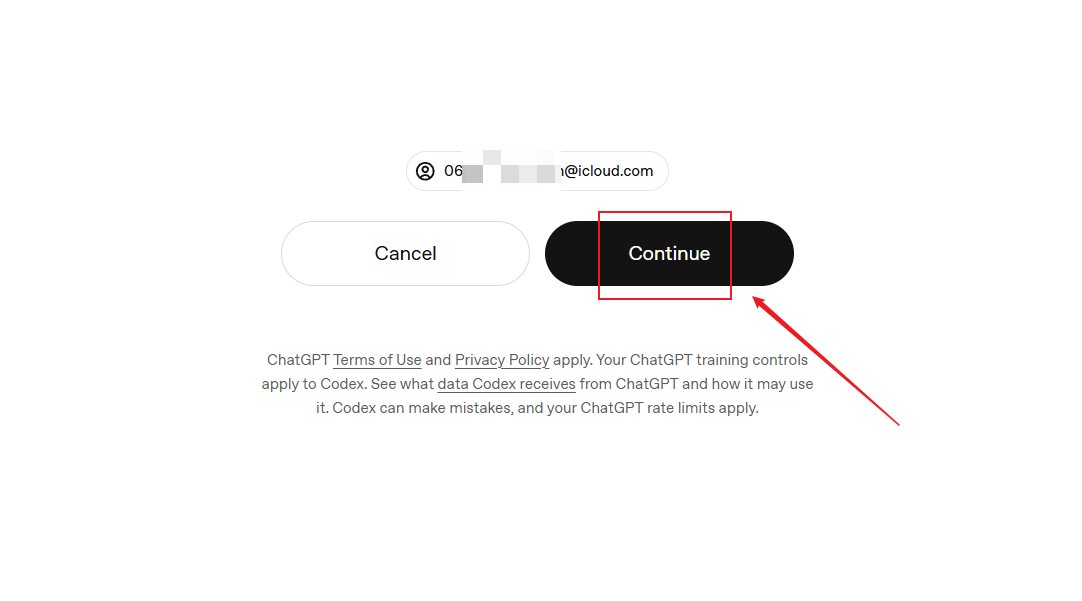
When the login page appears, enter the email address provided with your account and click Continue.
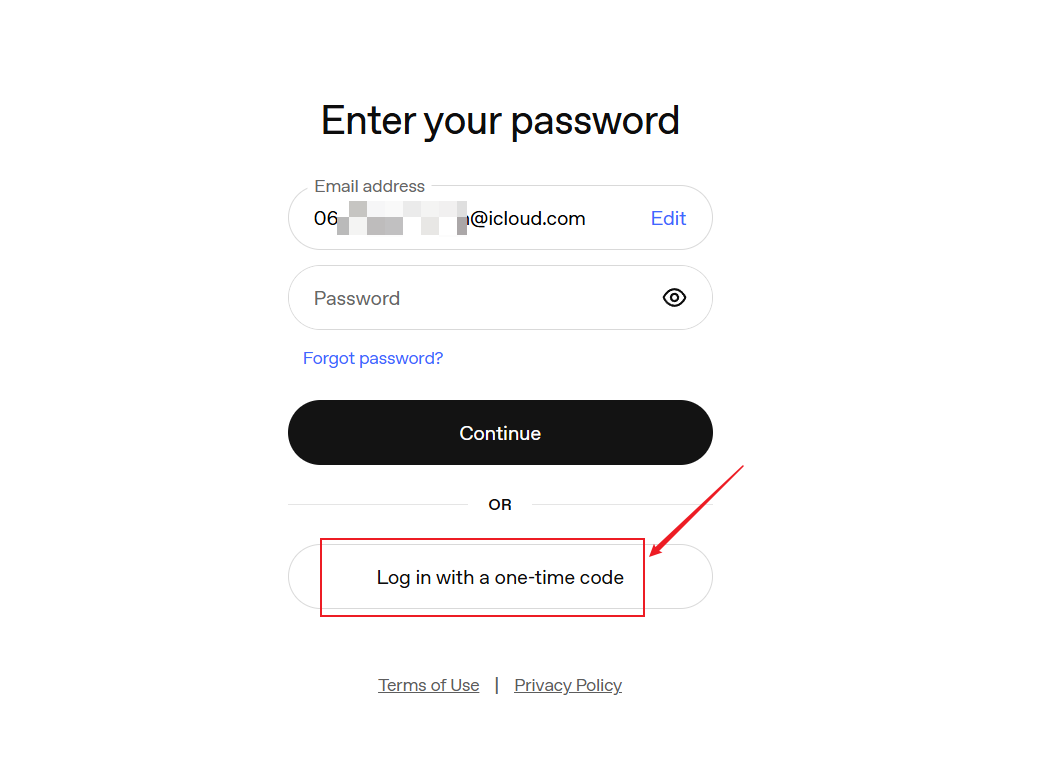
Step 3
If you are asked for a password, select Use a one-time verification code instead and continue with the email verification method described below.
If the page is already requesting a one-time verification code, proceed directly to Step 4.
Step 4
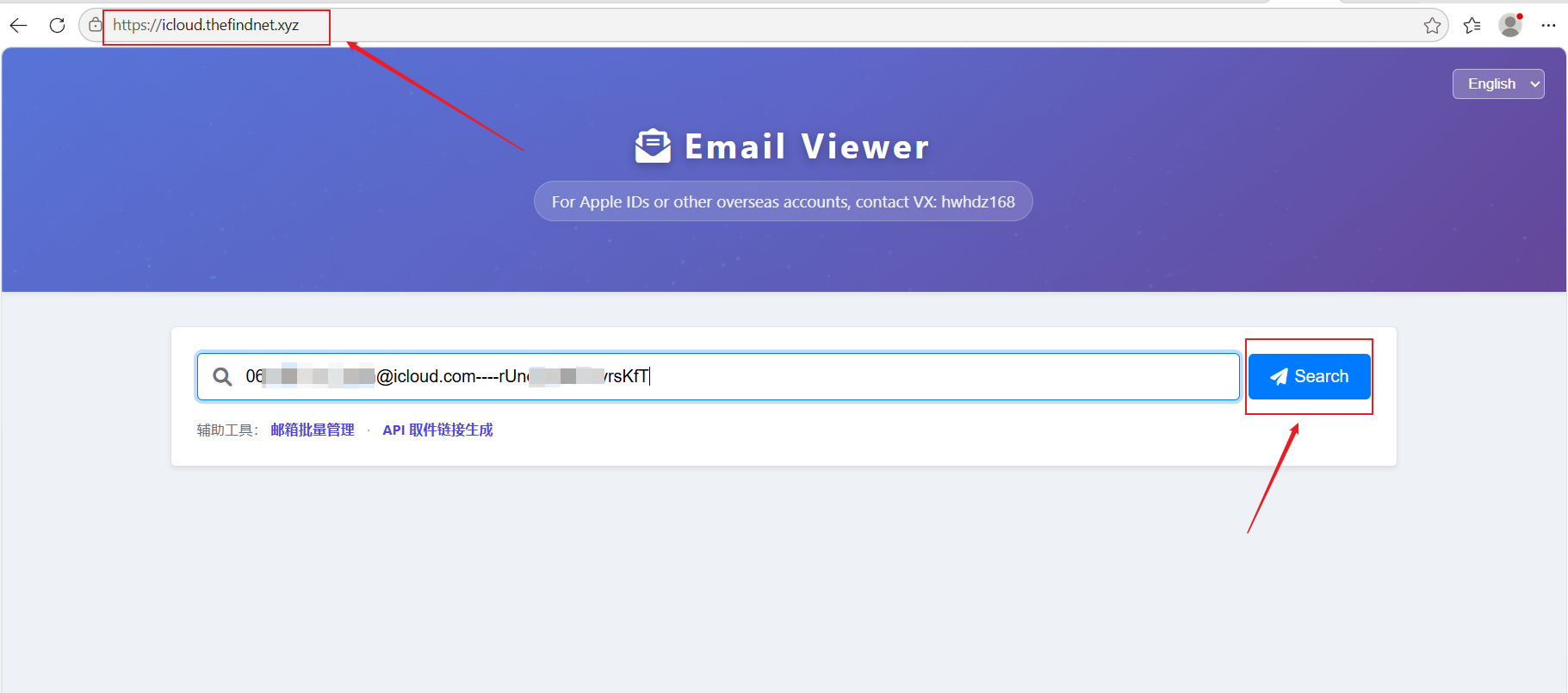
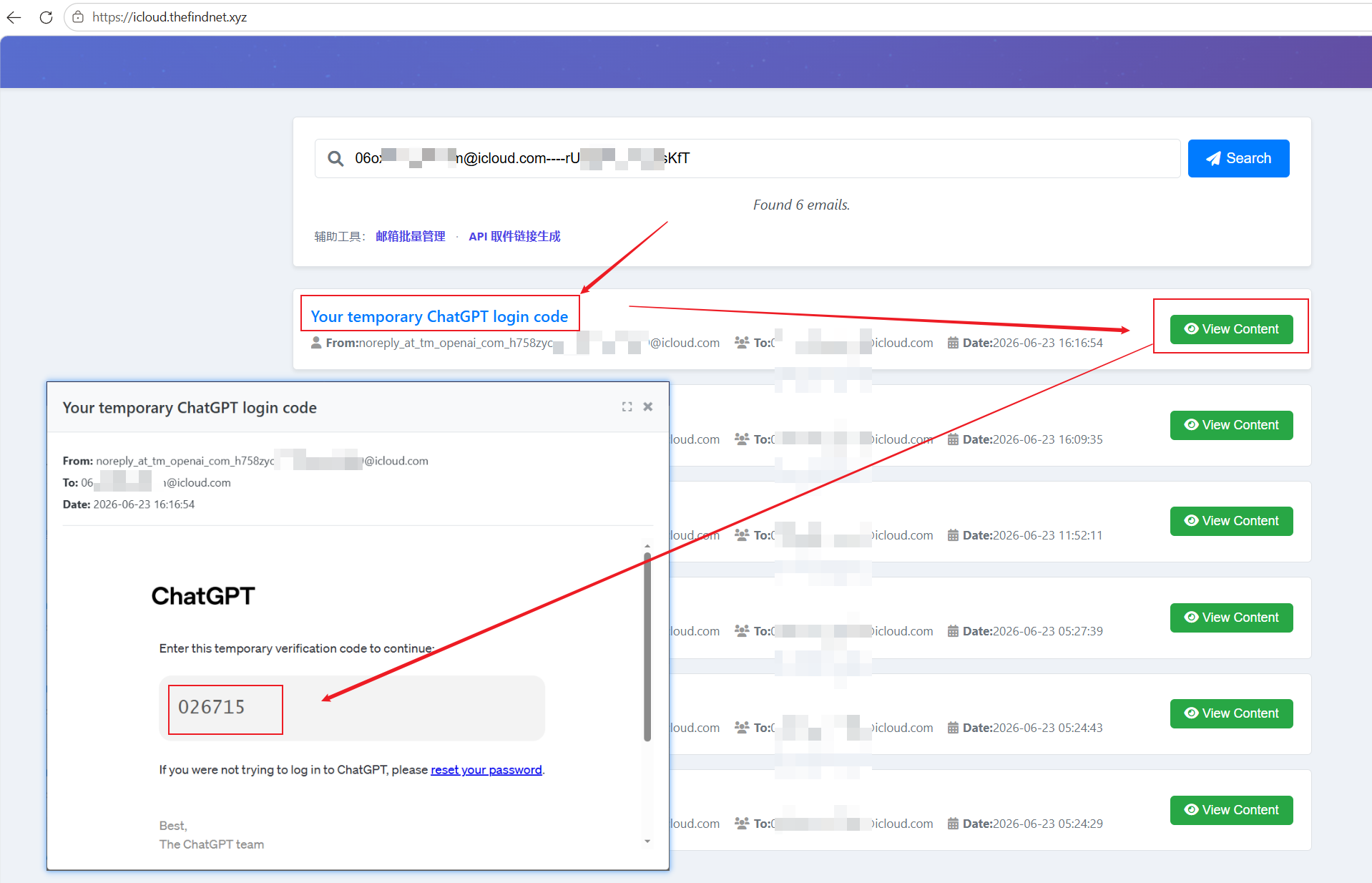
Retrieve the email verification code.
Visit:
https://icloud.thefindnet.xyz/
In the search box, enter the email address and email access code using the following format:
Email Address----Email Access Code
Example:
06oxb65s-denim@icloud.com----rUndvhw33rsKfT
⚠️ Important:
Use the format exactly as shown above.
- Use exactly four hyphens (
----) between the email address and the email access code. - Do not add any spaces before or after the hyphens.
- Enter the information exactly as it was provided to you.
- The Email Access Code is NOT the password of the email account.
- The Email Access Code is only used to view incoming verification emails.
After entering the information, click Search.
Step 5
The system will display the latest emails received by the mailbox.
Locate the most recent email sent by OpenAI and copy the verification code.
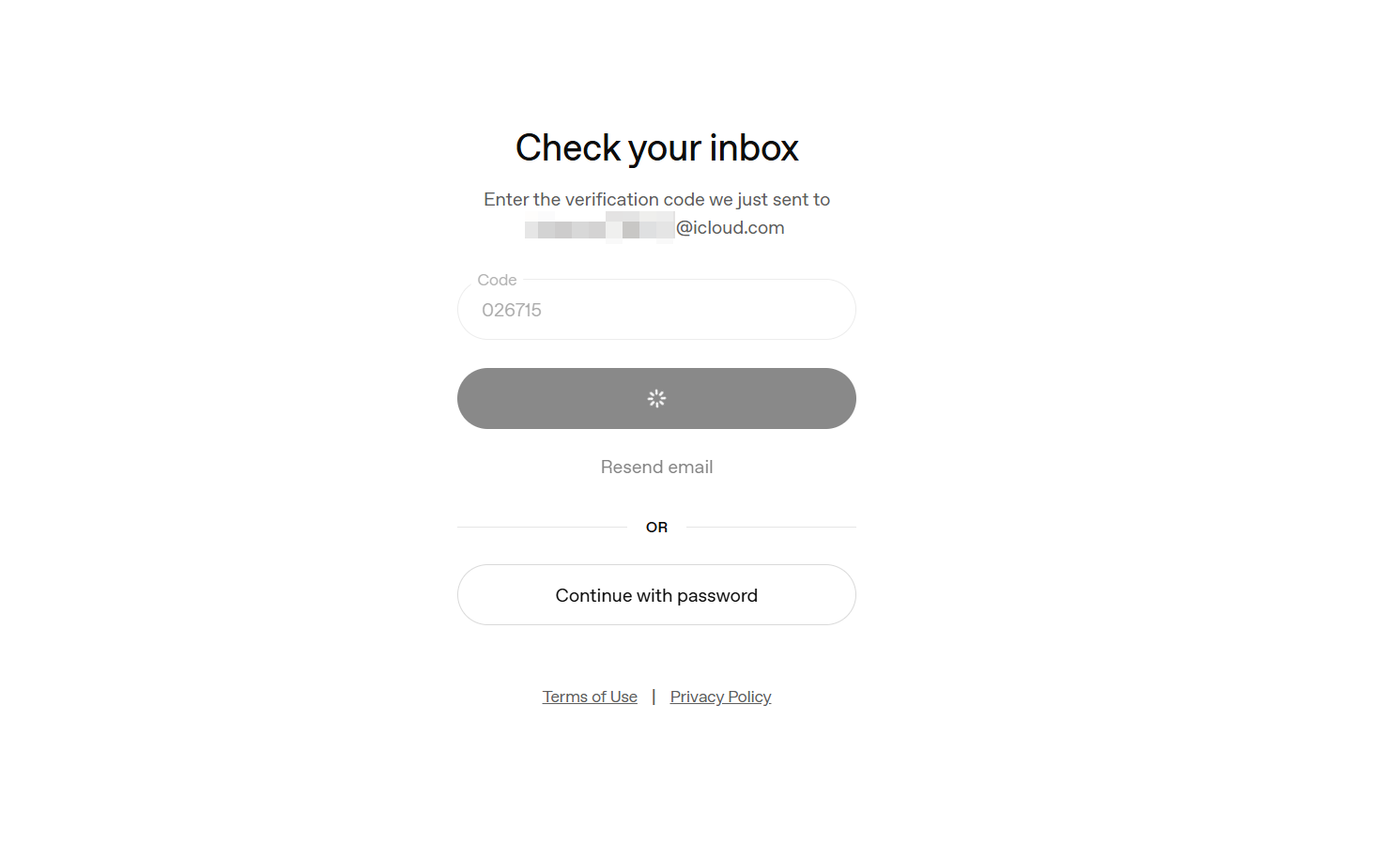
Return to the Codex login page and enter the verification code to continue.
If you do not see the verification email immediately, wait a few moments and click Search again to refresh the mailbox.
Step 6
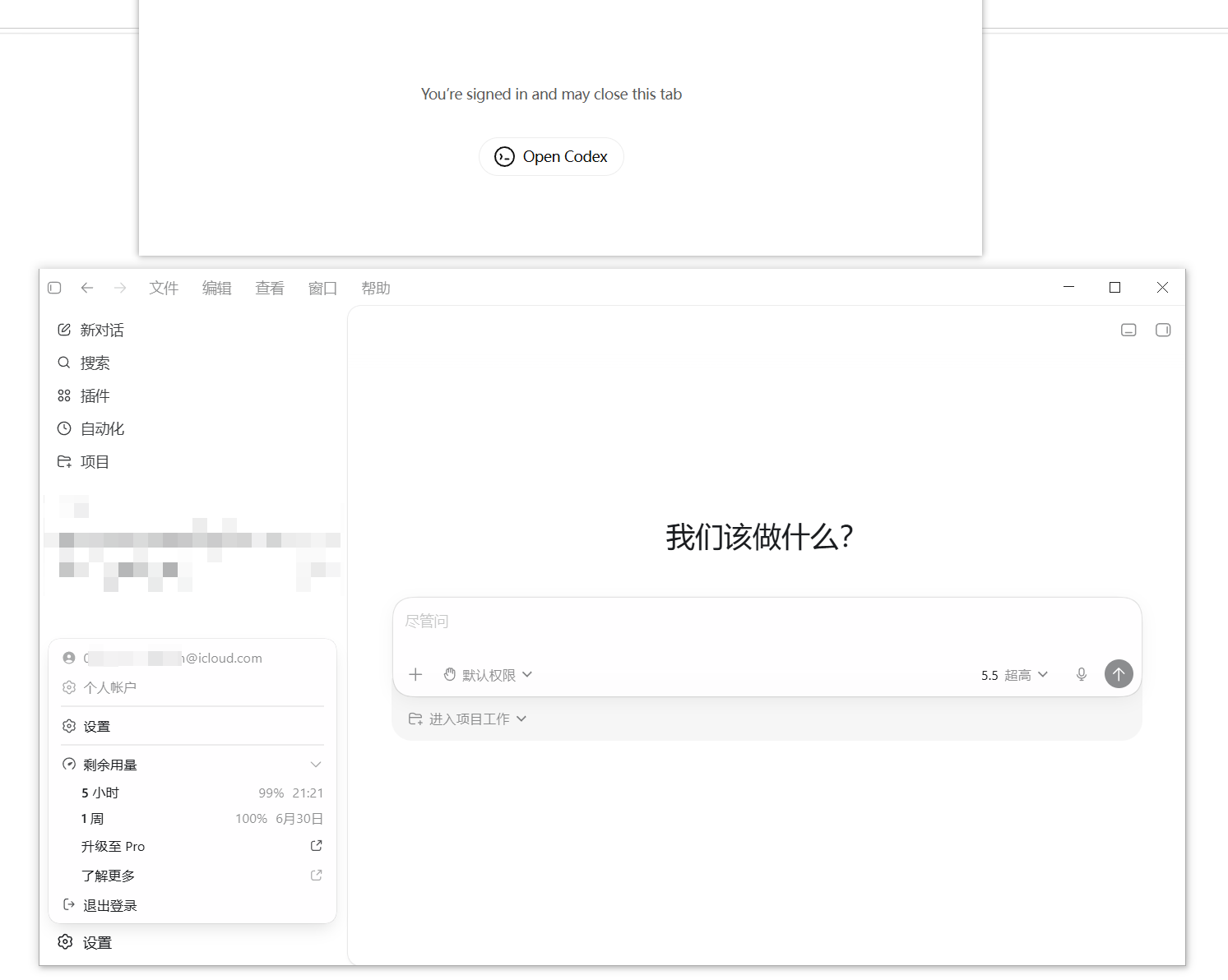
Return to the Codex login page and enter the verification code.
Step 7
If phone verification is requested, open your assigned SMS verification link and retrieve the latest SMS verification code.
Enter the code to complete the login process.
Frequently Asked Questions
Which login method should I use for ChatGPT?
Always use the phone number login method when accessing ChatGPT through the website.
Do not use email login for ChatGPT Web unless specifically instructed.
Which login method should I use for Codex?
For Codex, always use the provided email address and email verification code.
Do I need to bind my own phone number?
No.
The account already includes a linked phone number.
Please do not add, replace, or modify the existing phone number.
How long is the SMS receiving service available?
The SMS receiving service is generally available for approximately 25 days from the account delivery date.
Can I change the bound email address?
No.
Please do not modify, replace, or remove the assigned email address.
Changing account information may trigger security verification and could affect account access or subscription status.
Important Reminders
✅ Use phone number login for ChatGPT Web.
✅ Use email login for Codex.
✅ Keep your account credentials secure.
✅ Use only the account information assigned to you.
✅ Follow the login steps exactly as described.
❌ Do not change the bound email address.
❌ Do not bind a new phone number.
❌ Do not share your account credentials with others.
❌ Do not use the example credentials shown in this guide.
If you encounter any login issues, please contact support and provide a screenshot of the error message for faster assistance.